

For most people, the Arlo Pro 5S 2K is the one to buy. It hits the sweet spot between image quality, wire-free convenience, and smart home compatibility – including HomeKit if that matters to you. Everything else in Arlo’s lineup is either a step down or overkill depending on your situation.

That said, Arlo’s subscription pricing is the conversation nobody wants to have. You can use the cameras without a plan, but you’re giving up a lot. We’ll get into exactly what you lose and whether any of the paid tiers are worth it.
TL;DR – Quick Picks
- Best overall: Arlo Pro 5S 2K – 2K HDR, color night vision, HomeKit-ready, wire-free
- Best budget pick: Arlo Essential 2nd Gen – 1080p, cheapest entry point, subscription-heavy
- Best for 4K fans: Arlo Ultra 2 – 4K HDR with spotlight, but you’re paying a premium for pixels most screens can’t show
- Best for off-grid: Arlo Go 2 – LTE cellular, no WiFi required, genuinely useful for rural properties
Arlo Pro 5S 2K – Best Overall
Model: VMC4060P. This is Arlo’s flagship wire-free camera, and it earns the title. You get 2K HDR video, color night vision that actually works (not the washed-out green-tinted garbage you get from cheaper cameras), and a 160-degree field of view that covers a lot of ground without requiring you to reposition it three times.
It’s wire-free, so installation is genuinely straightforward – magnetic mount, no drilling for power. Battery life is solid enough for most residential use cases, though heavy motion areas will chew through it faster. The camera supports local storage via an Arlo SmartHub (microSD in the hub, not the camera itself), which matters if you want footage without a cloud subscription.
HomeKit compatibility is here too, but requires the SmartHub – more on that below. If you’re building a HomeKit home and want cameras that play nicely, this is your Arlo.
Check price on Amazon – Arlo Pro 5S 2K
Specs at a glance
- Resolution: 2K (2560×1440) HDR
- Field of view: 160 degrees
- Night vision: Color night vision
- Power: Wire-free (rechargeable battery)
- Local storage: Yes, via SmartHub microSD
- HomeKit: Yes (requires SmartHub)
- Matter: Announced support for Pro 4/5 models
- Weather rating: IP65
Who it’s for
Anyone who wants a serious outdoor camera without running wire, especially if HomeKit is in the picture. The 2K resolution and color night vision are a genuine step up from budget options – you’ll actually be able to identify faces and license plates at night, which is the whole point of having a security camera.
Arlo Essential 2nd Gen – Budget Option
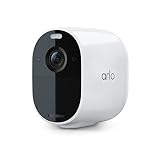
Model: VMC2030. If you need cameras and price is the primary constraint, the Essential 2nd Gen is the answer. It does 1080p, has motion detection, and works with Alexa and Google Assistant. That’s the good news.
The bad news: no HomeKit, no local storage option, and the subscription dependency is more pronounced here than on any other Arlo camera. Without Arlo Secure, you get no video history at all – just live view. No 30-second event clips, no nothing. For a camera that’s supposed to secure your home, that’s a meaningful limitation.
It’s fine as a starter camera if you’re willing to pay the subscription. But if you’re budget-conscious enough to be looking at the Essential, you should also be looking at Blink cameras, which handle the no-subscription scenario considerably better.
Check price on Amazon – Arlo Essential 2nd Gen
Specs at a glance
- Resolution: 1080p
- Field of view: 130 degrees
- Night vision: Standard (B&W)
- Power: Wire-free (rechargeable battery)
- Local storage: None
- HomeKit: No
- Weather rating: IP65
Who it’s for
Renters or anyone who needs a quick, low-cost outdoor camera and doesn’t care about HomeKit. Go in knowing you’re paying Arlo monthly on top of the hardware cost.
Arlo Ultra 2 – 4K Option

The Ultra 2 shoots 4K HDR with a built-in spotlight and an integrated siren. The image quality is excellent – there’s no debate about that. The debate is whether 4K is meaningful for a security camera in 2026.
Most people view their camera footage on a phone or a 1080p TV. The 4K advantage mostly shows up when you’re zooming into still frames to read a license plate or identify someone’s face – and even then, the Pro 5S at 2K covers most of those scenarios. The Ultra 2 costs significantly more for incremental gains most people won’t notice day-to-day.
It does support HomeKit (via SmartHub) and local storage. If you’re building a premium setup and want the absolute best camera Arlo makes, this is it. Just go in eyes open about the price.
Check price on Amazon – Arlo Ultra 2
Who it’s for
The person who wants the best regardless of cost and has a SmartHub-based setup already running. If you’re not sure whether you need 4K, you probably don’t.
Arlo Go 2 – For Remote Locations
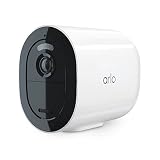
The Go 2 is the odd one out in the lineup. It runs on LTE cellular – no WiFi required at all. That makes it useful in a specific and narrow scenario: you need a camera somewhere without WiFi coverage. A remote gate, a barn, a construction site, a vacation property in the middle of nowhere.
For those use cases, it’s genuinely excellent. For a typical home security setup, it’s overkill – you’re paying for cellular capability you don’t need, and you’ll need an LTE plan on top of the camera cost and the Arlo subscription.
Check price on Amazon – Arlo Go 2
Who it’s for
Remote properties with no WiFi. Everyone else should look elsewhere.
Arlo Subscription Plans – What’s Actually Worth Paying For
Here’s where Arlo gets complicated. The cameras are hardware. The useful features are locked behind software subscriptions. That’s the deal, and you need to understand it before you buy.
Without any subscription, you get: live view, arm/disarm, push notifications for motion, and that’s mostly it. No video history. No cloud clips. Depending on your camera model, you may get limited free event recordings, but don’t count on it being enough.
Arlo Secure – .99/month per camera
The per-camera tier. You get 30 days of cloud video history, object detection (person, vehicle, animal, package), activity zones, and e911 emergency response. It’s the minimum viable plan if you want the cameras to actually behave like security cameras.
The math gets painful fast. Three cameras = 5/month = 80/year. That’s a meaningful ongoing cost on top of the hardware. Worth knowing before you commit to a multi-camera setup.
Arlo Secure Premier – 2.99/month (unlimited cameras)
Flat rate for unlimited cameras, plus everything in the per-camera tier. If you have four or more cameras, this is where the math tips in your favor. You also get extended history and some additional AI features.
For a larger home setup, Premier is the right tier. For one or two cameras, stick with the per-camera plan.
What you can skip
If you buy a Pro 5S or Ultra 2 with a SmartHub and insert a microSD card, you get local recording of triggered events without any subscription. It’s not a full replacement – no cloud backup, no remote access to stored clips from outside your network – but it’s a legitimate subscription-free fallback for the core “did this camera actually record what happened” use case.
HomeKit Integration – What You Actually Need
Arlo does support HomeKit, but there’s a catch that trips people up: the cameras themselves don’t connect directly to HomeKit. You need the Arlo SmartHub (sold separately or bundled with Pro model multi-packs).
The SmartHub is a base station that sits on your network and bridges your Arlo cameras to HomeKit. Once it’s set up, the cameras appear in the Home app like any other HomeKit accessory – you can automate them, view live feeds, and trigger recordings based on HomeKit automations.
Compatible cameras for HomeKit via SmartHub: Pro 4, Pro 5S, and Ultra 2. The Essential lineup does not support HomeKit.
Arlo has also announced Matter support for select Pro 4 and Pro 5S cameras, which would eventually allow direct smart home integration without the SmartHub dependency. That’s forward-looking infrastructure – in practice, the SmartHub route is still how most people run HomeKit + Arlo today.
For a deeper look at the HomeKit setup process and compatibility edge cases, see our guide: Does Arlo Work With HomeKit?
Arlo vs Blink vs Ring – Which System Fits Your Setup
These three brands dominate the wireless home security camera market, and they’re not interchangeable. Each one is optimized for a different type of buyer.
Choose Arlo if:
- You’re building a HomeKit-based smart home (only real wire-free option with HomeKit)
- Image quality is a priority – Arlo’s 2K and 4K options outperform competitors at similar price points
- You want color night vision on an outdoor camera
- You need LTE for remote locations (Go 2)
Choose Blink if:
- You want to avoid or minimize subscription costs – Blink’s free tier is more generous
- Budget is a hard constraint and you’re okay with 1080p
- You’re already deep in the Amazon/Alexa ecosystem
We have a full breakdown of how Blink handles continuous recording if that’s relevant to your setup.
Choose Ring if:
- You want a doorbell camera – Ring’s video doorbells are the category standard
- You want hardwired options with always-on recording
- You’re already paying for Amazon Prime (includes some Ring Protect features)
Ring’s camera ecosystem works well alongside its doorbells. If you’re already running a Ring doorbell, adding Ring cameras keeps everything in one app. That convenience is real, even if Arlo’s outdoor camera hardware is generally better.
The honest summary
Arlo has the best outdoor camera hardware in this comparison. Ring has the best doorbell cameras. Blink wins on cost if you’re subscription-averse. Pick based on your actual priorities, not brand loyalty.
How to Set Up an Arlo Pro 5S
Download the Arlo app and create an account
Get the Arlo app from the App Store or Google Play. Create a free Arlo account – you’ll need this regardless of whether you subscribe to a paid plan.
Set up the Arlo SmartHub
Plug the SmartHub into your router via ethernet. Open the app and select Add Device – SmartHub. The app will walk you through the pairing process. This step is required for HomeKit and local storage.
Add your Arlo Pro 5S camera
In the Arlo app, select Add Device – Camera – Pro 5S. Press the sync button on the camera and hold it near the SmartHub. The app will detect it and add it to your system.
Enable HomeKit (optional)
If you want HomeKit integration, go to Settings – SmartHub Settings – HomeKit in the Arlo app. Scan the HomeKit QR code with the Home app or enter the pairing code. Your cameras will appear in Apple Home within a minute or two.
Insert a microSD card for local storage
Power down the SmartHub, insert a microSD card (up to 2TB) into the slot on the side, and power it back up. The Arlo app will recognize it automatically. Configure recording mode under Device Settings – Video – Local Storage.
Position and mount your cameras
Arlo cameras use a magnetic ball mount. Pick a location with good sightlines, mount the base (screw or adhesive), and attach the camera. Adjust the angle in the app using the live view to confirm coverage before finalizing placement.